
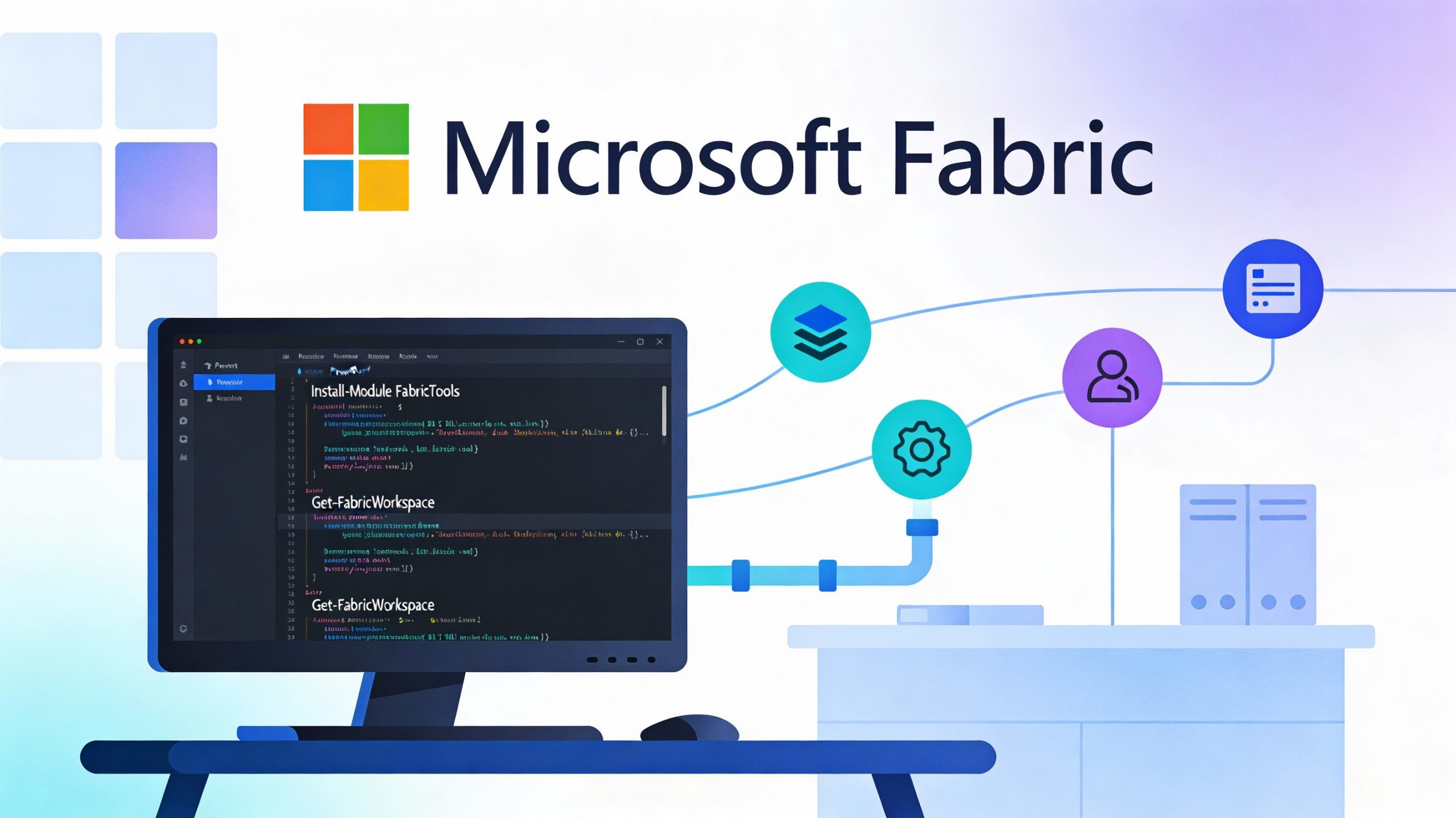
Start with the FabricTools PowerShell module
Managing Microsoft Fabric at scale quickly becomes painful if you rely only on the UI. Workspaces, capacities, and tenant-level settings all need repeatable, scriptable management. FabricTools is a community-driven PowerShell module that fills this gap by adding high‑level cmdlets focused on Microsoft Fabric and Power BI administration.
In this post, you will learn what FabricTools is, how to install it from the PowerShell Gallery, and how to list all Fabric workspaces and export them to a CSV file for further analysis.
What is FabricTools?
FabricTools is an open‑source PowerShell module that provides a set of helper cmdlets for administering Microsoft Fabric and Power BI. It helps with admins’ daily workloads and DevOps / automation / SDLC scenarios, as well as any other task that is difficult to automate with only the UI or raw REST calls.
Key characteristics:
-
Community‑driven and open source, hosted on GitHub under the dataplat organisation
-
Distributed via the PowerShell Gallery as the
FabricToolspackage -
Designed to complement existing modules (such as the Power BI admin cmdlets) by adding Fabric‑aware commands, not replace them
Installing FabricTools from PowerShell Gallery
Because FabricTools is published on the PowerShell Gallery, installation uses the standard Install-Module cmdlet. You can install it either for all users on a machine or just for your own profile.
Install for all users
Run PowerShell as Administrator and execute:
Install-Module -Name FabricTools
If this is your first time using the PowerShell Gallery, you might be prompted to trust the repository; confirm to continue.
Install for the current user only
If you do not have admin rights on the machine or you prefer to keep everything scoped to your profile, use the CurrentUser scope:
Install-Module -Name FabricTools -Scope CurrentUser
This places the module under your user profile directory, avoiding the need for elevated permissions.
Installing a specific version
In some environments, you may want to pin to a specific version of FabricTools (for example, to maintain consistency in CI/CD pipelines). The -RequiredVersion parameter lets you do this:
Install-Module -Name FabricTools -Repository PSGallery -RequiredVersion 0.31.0
After installation, you can verify that the module is available:
Get-Module FabricTools -ListAvailable
If needed, import it explicitly:
Import-Module FabricTools
Authorising your PowerShell session with Fabric
Before running any FabricTools commands, you need to authorise your PowerShell session against your Microsoft Fabric tenant using Connect-FabricAccount. This cmdlet handles the Azure sign‑in flow and retrieves an access token used by subsequent FabricTools calls.
Basic interactive sign‑in
For a normal interactive session, you just pass the tenant ID and follow the browser/device login flow managed by Connect-AzAccount under the hood:
$TenantId = '00000000-0000-0000-0000-000000000000'Connect-FabricAccount -TenantId $TenantId -Verbose
If you need to force a fresh login (for example, when switching users or clearing an old token), use the -Reset switch:
Connect-FabricAccount -TenantId $TenantId -Verbose -Reset
The cmdlet stores the token and required headers in the internal FabricTools session object, so you do not need to deal with bearer tokens manually for later commands like Get-FabricWorkspace.
Connecting using a service principal (SPN)
For automation scenarios (Azure DevOps, scheduled jobs, headless servers), authenticating with a Microsoft Entra ID service principal is usually preferred. You supply the tenant ID, the service principal (application/client) ID, and its secret to Connect-FabricAccount, converting the secret into a secure string first.
Example:
# Tenant and SPN identifiers$TenantID = '02f0ae90-0000-0000-abed-209885e00000'$ServicePrincipalId = '4cbbe76e-0000-0000-93d9-1f75d371fde1'$ServicePrincipalSecret = 'xxx' # store securely in practice# Secure way to connect with credential object$ServicePrincipalSecretSecure = $ServicePrincipalSecret | ConvertTo-SecureString -AsPlainText -ForceConnect-FabricAccount `-TenantId $TenantID `-ServicePrincipalId $ServicePrincipalId `-ServicePrincipalSecret $ServicePrincipalSecretSecure `-Verbose `-Reset
This pattern allows your automation to run under a non-interactive identity with controlled permissions over Fabric resources, while keeping the secret out of plain text in memory. This is an example only, but remember not store any password in plain text. Load the secret from a secure store such as Azure Key Vault or a pipeline secret variable instead of hard‑coding it in the script.
Listing Fabric workspaces with FabricTools
Once FabricTools is installed and you are authenticated, you can use its workspace cmdlets to retrieve information about Microsoft Fabric workspaces. One of the core commands is typically exposed as Get-FabricWorkspace .
A simple pattern is:
-
Ensure you are authenticated using the above step (
Connect-FabricAccount). -
Call the FabricTools workspace cmdlet to retrieve workspaces.
- Export to CSV with
Export-Csv.
Here is a basic example:
# Retrieve Fabric workspaces
$workspaces = Get-FabricWorkspace

# Export selected properties to CSV
$workspaces | Export-Csv -Path 'C:\tmp\FabricWorkspaces.csv' -NoTypeInformation
What this script does:
-
Get-FabricWorkspacereturns a collection of workspace objects from your Fabric environment. -
Export-Csvwrites the data to a CSV file that you can load (or just open) into Excel, Power BI, or a Fabric Lakehouse.

You can use parameters when using Get-FabricWorkspace to find out a given workspace:

Where to go next
FabricTools includes many more commands beyond listing workspaces, such as capacity operations, workspace creations, listing many other objects and other admin helpers.
List of all supported commands is in the GitHub: FabricTools – Doc
If you prefer, you can check the module’s help from PowerShell with:
Get-Help -Name Get-FabricWorkspace -Full
replacing the cmdlet name with whatever you want to explore.
List of all cmdlets:
Get-Command -Module FabricToolsAbout author

You might also like


Introducing FabricTools (PowerShell module)
🔍 The Challenge: DevOps for Microsoft Fabric In the world of Microsoft Fabric, DevOps is still maturing. Unlike Azure Data Factory (ADF), which has been around long enough to have



2 Comments
Dew Drop – December 24, 2025 (#4568) – Morning Dew by Alvin Ashcraft
December 24, 13:41[…] Start with the FabricTools PowerShell module (Kamil Nowinski) […]
An Overview of the FabricTools Powershell Module – Curated SQL
December 29, 13:05[…] Kamil Nowinski provides an overview of the FabricTools Powershell module: […]